 Vẽ Tay
 Turn ideas into video
Turn a script into a hand-drawn video
Vẽ Tay Studio is a Windows app that draws each scene by hand, reads your words in a natural AI voice and times subtitles to every word. Simple, powerful AI video, built for Vietnamese creators.
Version 1.1.5 for Windows 10 and 11 (64-bit).
- Videos from ideasTurn your content into a video in a few minutes
- Natural voicesExpressive, lifelike Vietnamese voices
- Rich contentMany topics and many styles
- Streamlined workflowFast, simple and efficient
Five video formats
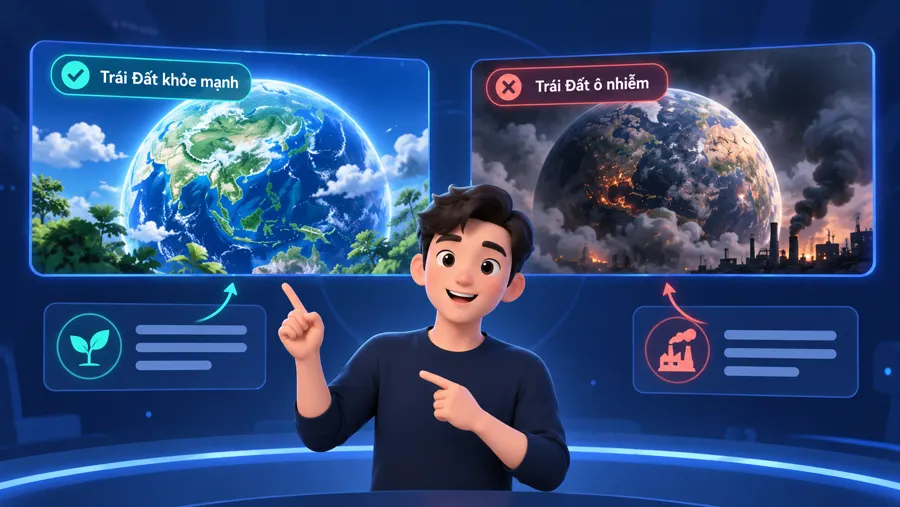
Every video starts from one of the five formats built into the app. Here’s a sample frame from each.




From script to finished video
You handle the words. The app handles the drawing, the voice and the timing, and renders on your own PC.
Write the script
Type or paste what you want to say. Plain text is enough.
Choose a format and voice
Pick one of five formats, then an AI voice or a voice profile made from your own recording.
Let the app draw
Each scene is drawn by hand, voiced, given word-by-word subtitles and set to music from your library.
Export and post
Get an MP4 at 1080 × 1920 and 30 fps, ready for TikTok, Reels and YouTube Shorts.
Your license, on your PCs
Sign in to the app with your account and enter your license key. The license and every PC using it show up in your account on this site.
Moving to a new PC? Remove the old one from your account, then activate on the new one.
License keys look like this
VTS-XXXX-XXXX-XXXX-XXXX
- PCs
- Each license covers a set number of PCs. See and remove them in your account.
- Offline use
- Up to 72 hours between online checks.
- End date
- Timed licenses show their end date in your account. Lifetime licenses don’t expire.
- Your files
- Stay on your PC, in
%LOCALAPPDATA%\VeTayStudio.
Questions
More in the guide, or write to contact@driveflow.casa.
Which computers does it run on?
Windows 10 and Windows 11, 64-bit.
How do I create an account?
On the Create an account page, or from the “Create an account on the web” button on the app’s sign-in screen.
Do I need to be online?
Only to sign in, activate and check your license. After each check, the app keeps working offline for up to 72 hours.
The app says my device limit is reached. What now?
Your license is already active on as many PCs as it allows. Sign in, remove a PC you no longer use, then activate again.
Does it come with AI credits?
No. AI images and stock media use your own OpenAI, Gemini, Pexels or Xkiro key, which you add in the app’s Settings.
Where are my scripts and videos saved?
On your PC, in %LOCALAPPDATA%\VeTayStudio. They aren’t uploaded to this site.
Make your first video today
Download the app, create an account and activate your license key.